
Mend Well Program
Blood Pressure Monitor Set Up
Welcome to the Mend Well program. Follow the steps below to connect Withings to Thryve, sign into the Withings app, and install your blood pressure monitor.
Phase 1: Connect Withings to Thryve
Steps 1-9 • Browser Authorization
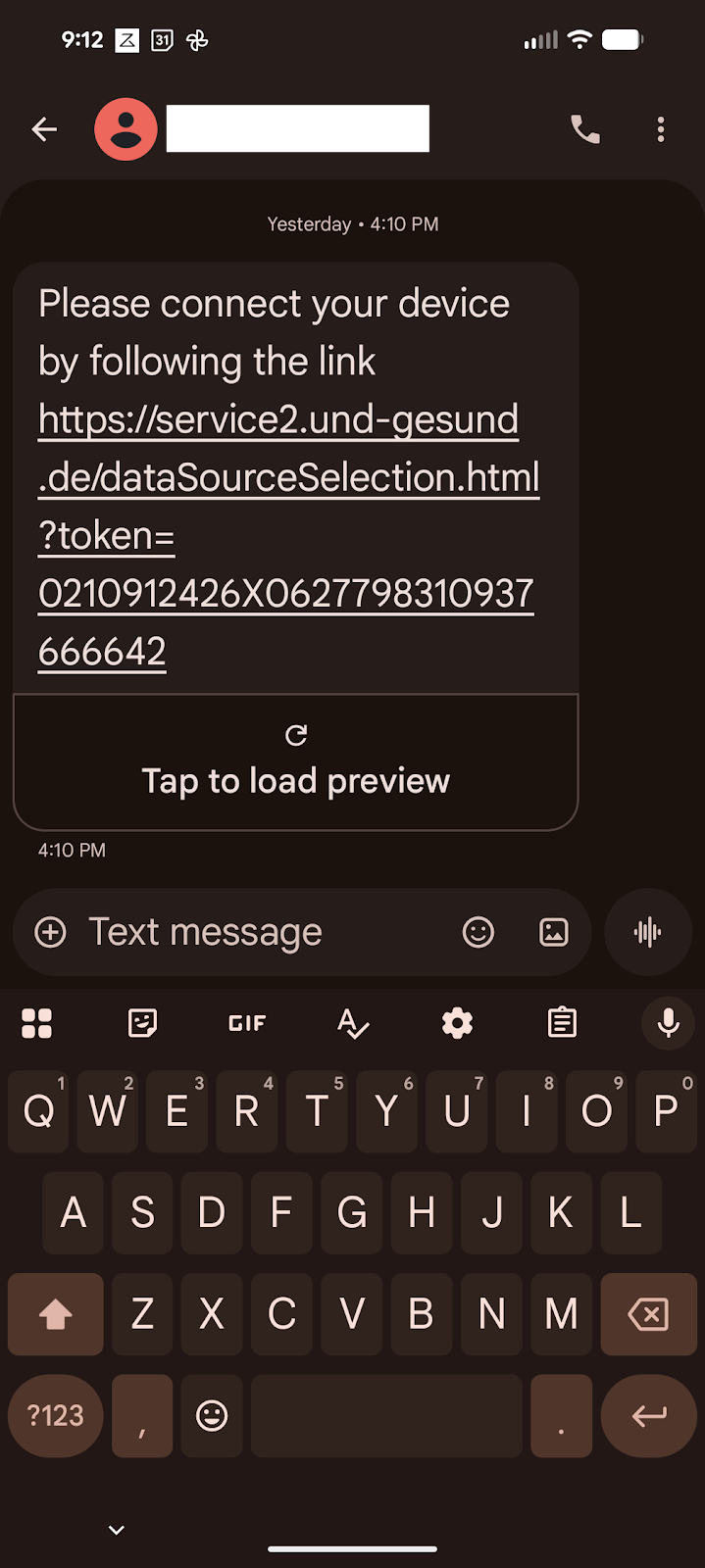
Open the text link
Your care team will send you a Thryve connection link. Tap the link in the text message to begin.
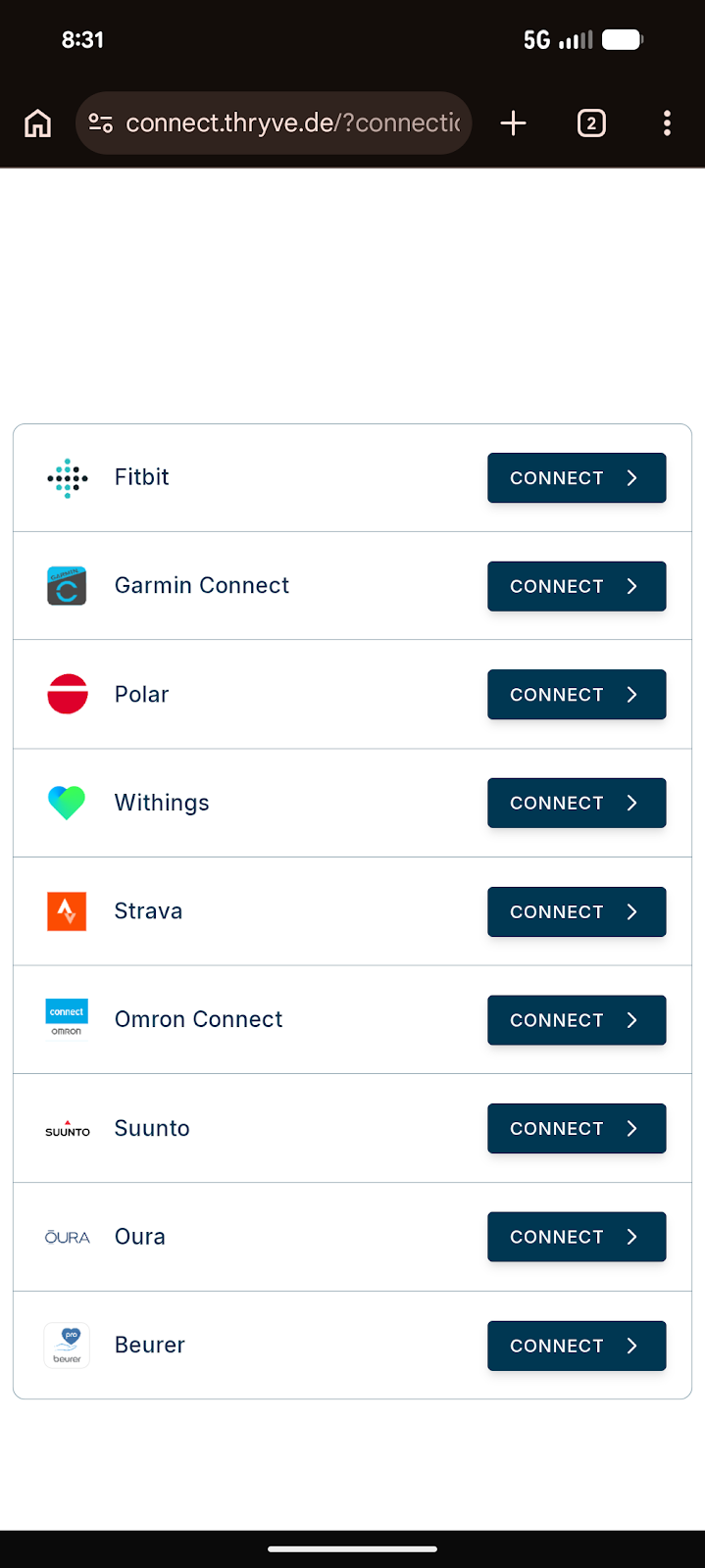
Select Withings
Choose Withings from the device list on the webpage.
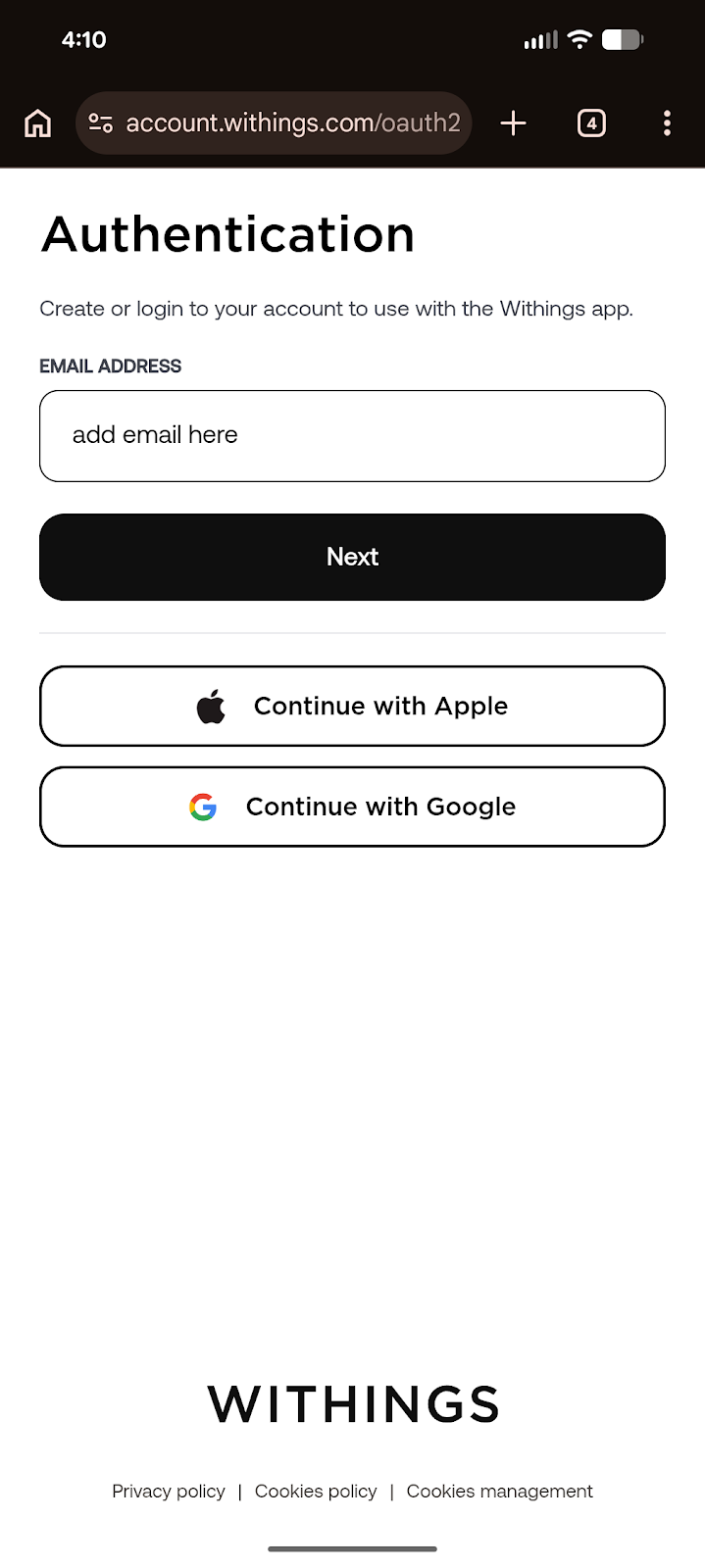
Enter your account email
Enter the email you want to use for your Withings account. We recommend using email for setup. If you use Apple ID here, use the same Apple login later in the app.
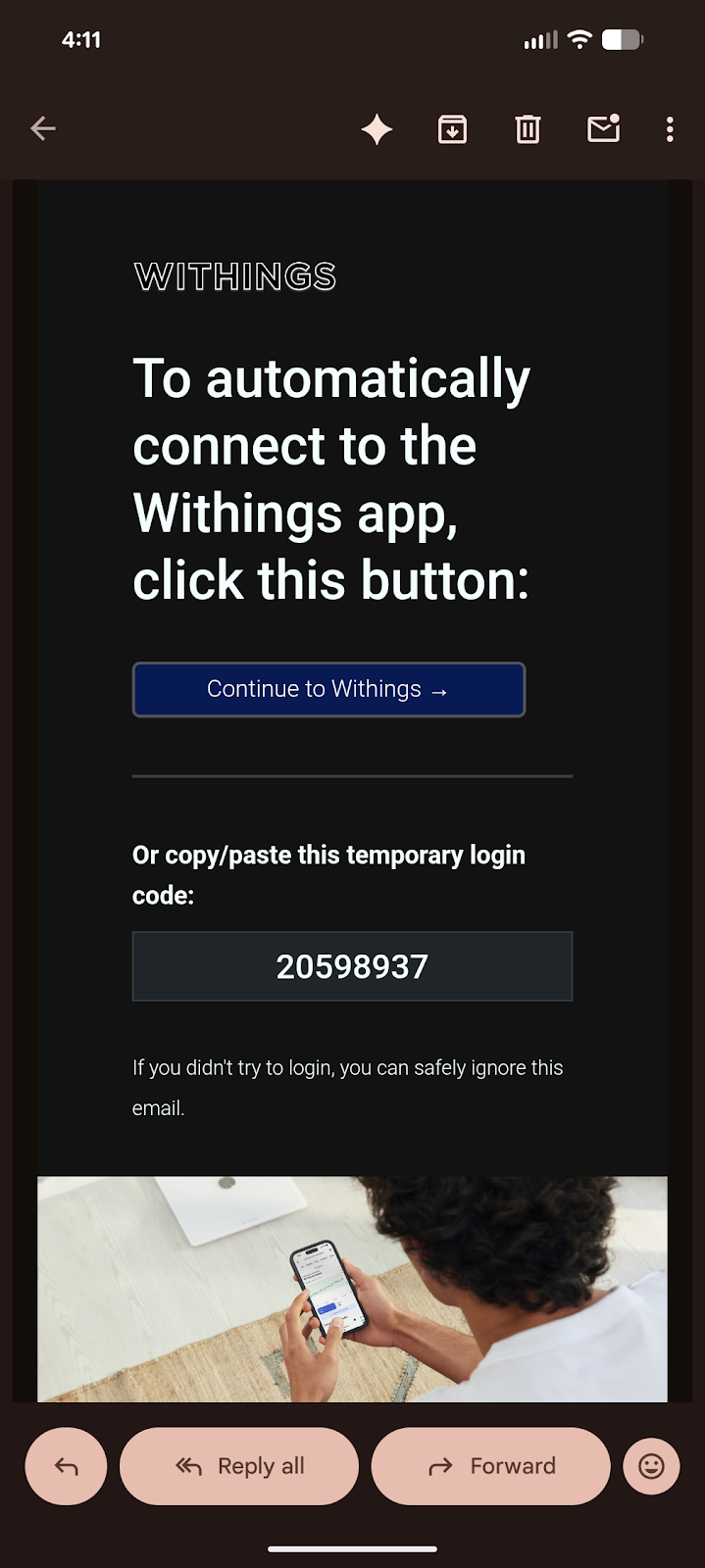
Copy the authentication code
Withings will send a temporary authentication code to your email. Copy or write down the code.
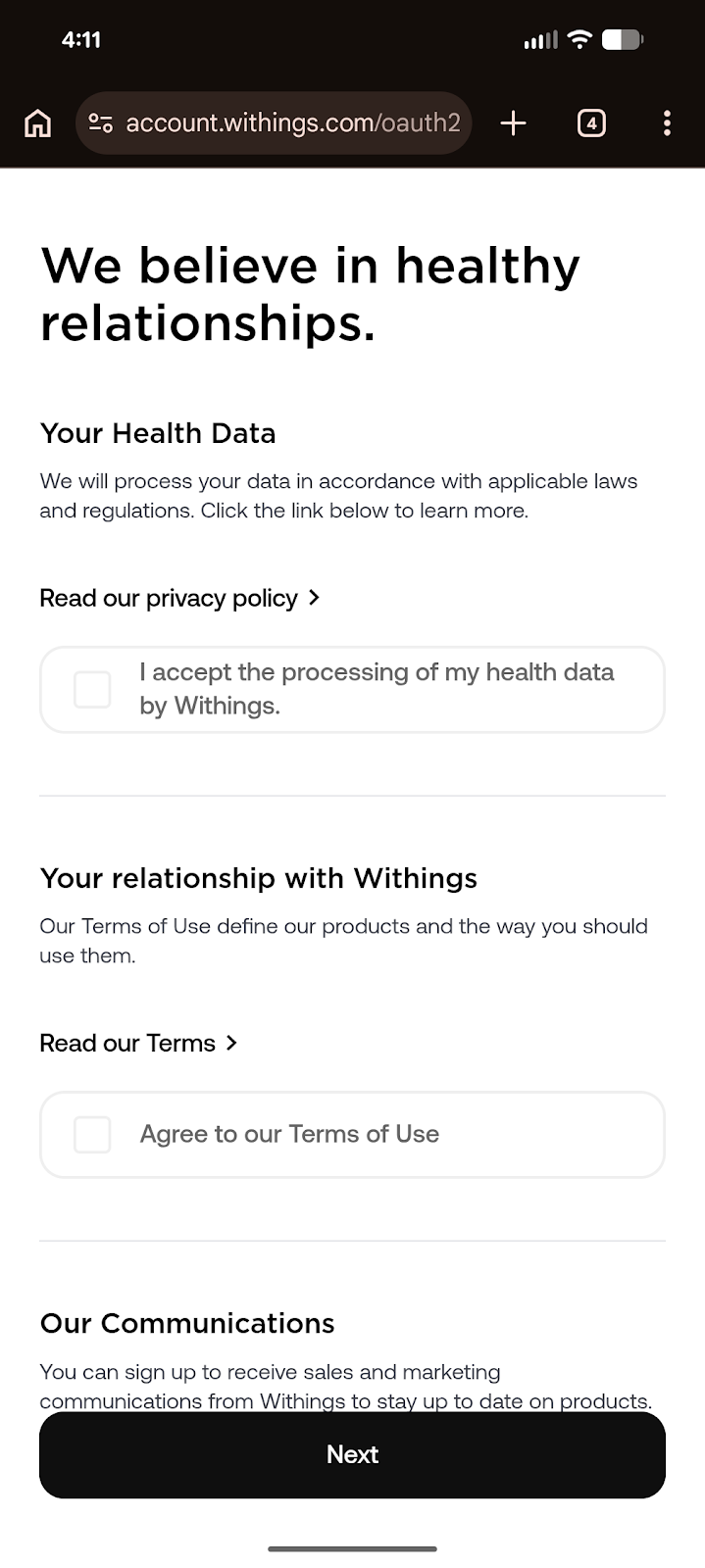
Accept the terms
Review and accept the terms and permissions to continue.
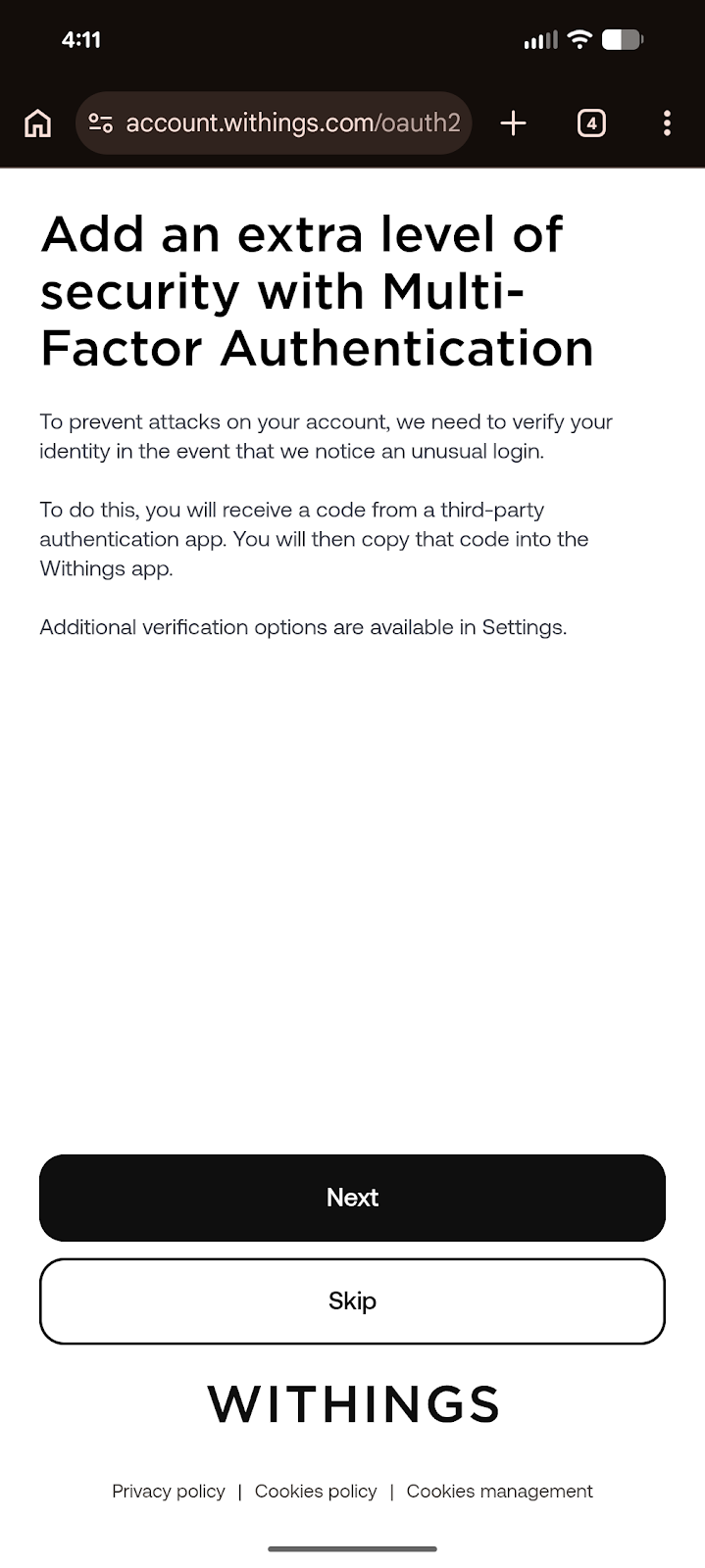
Choose MFA or skip
Multi-factor authentication is optional. You can continue with MFA or skip this step.
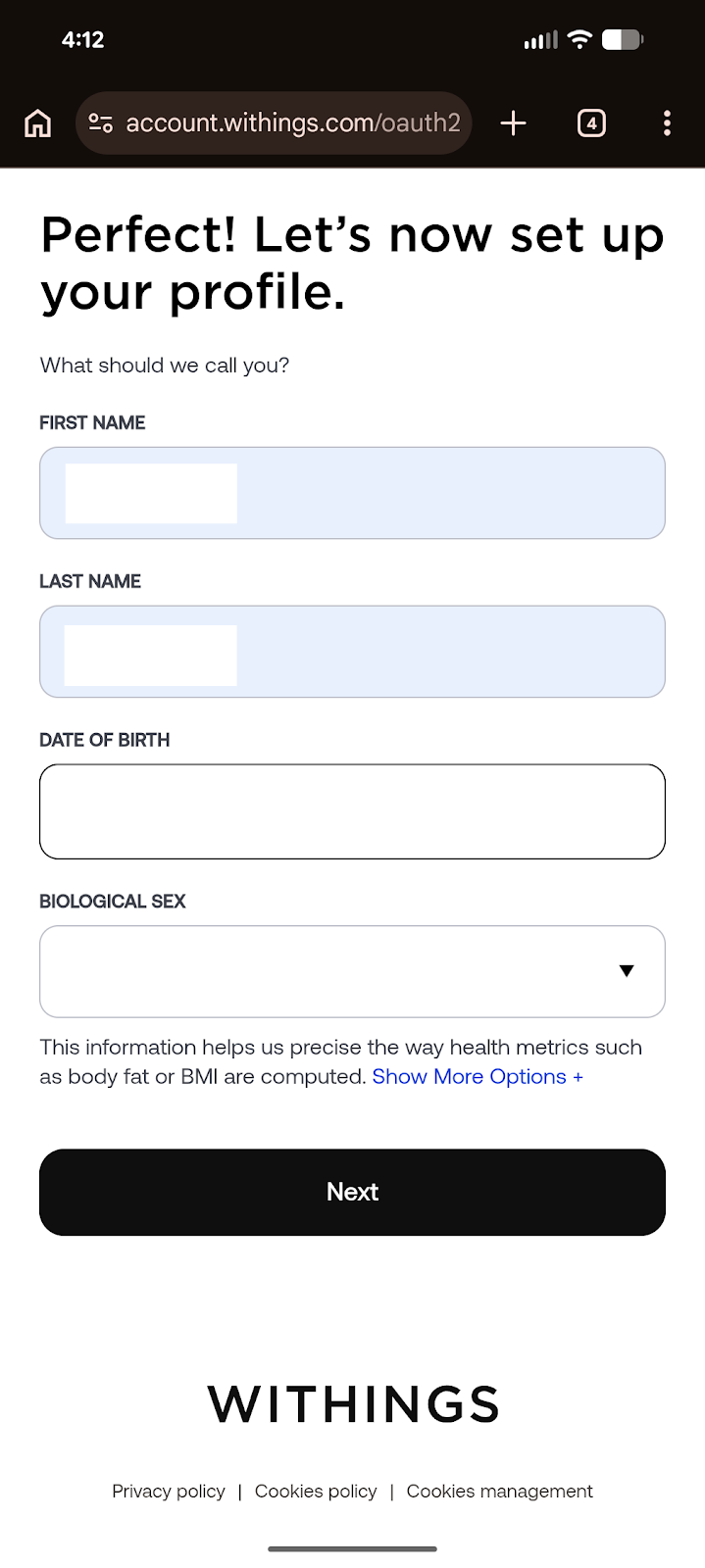
Set up your profile
Enter your name, date of birth, and sex to begin your Withings profile.
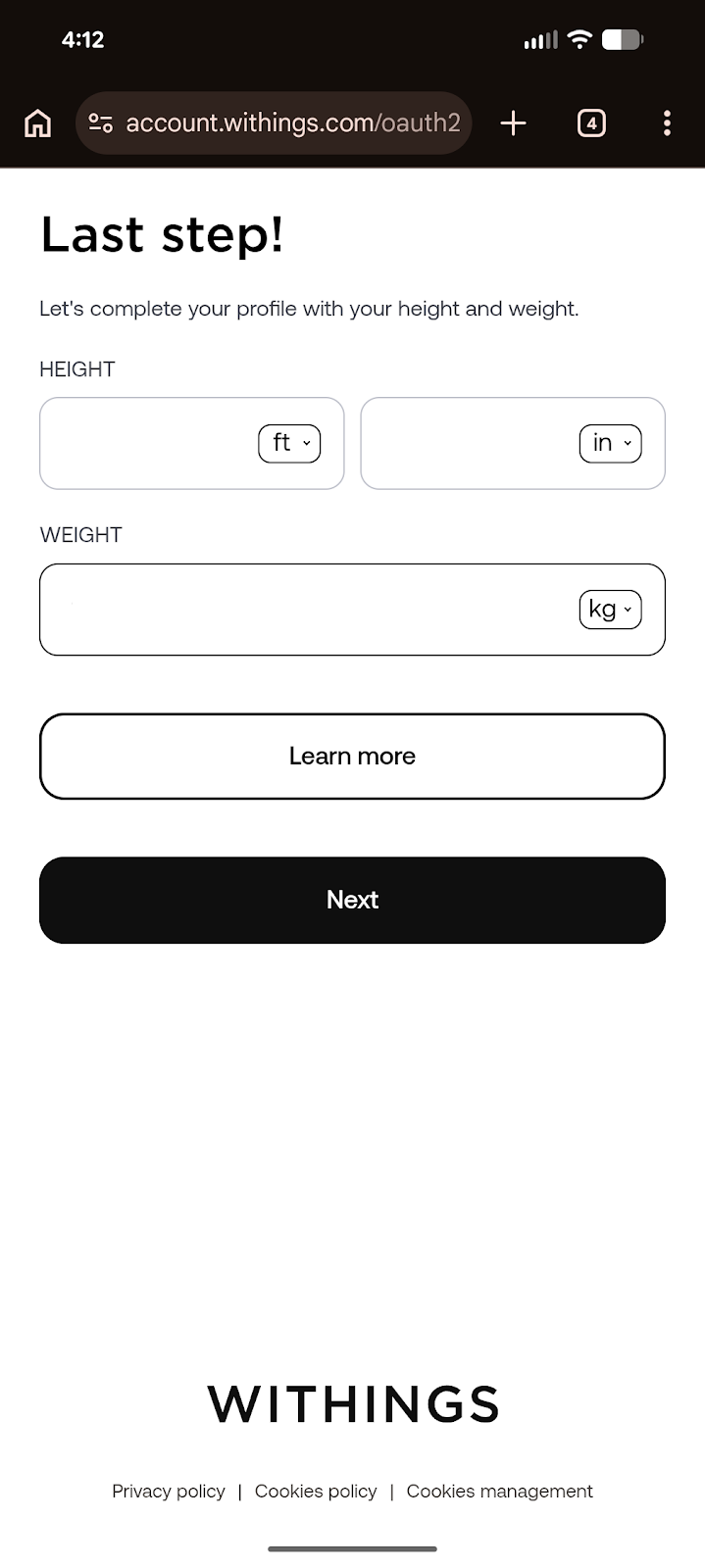
Enter height and weight accurately
Enter your height and your most current weight as accurately as possible. This helps complete your Withings profile.
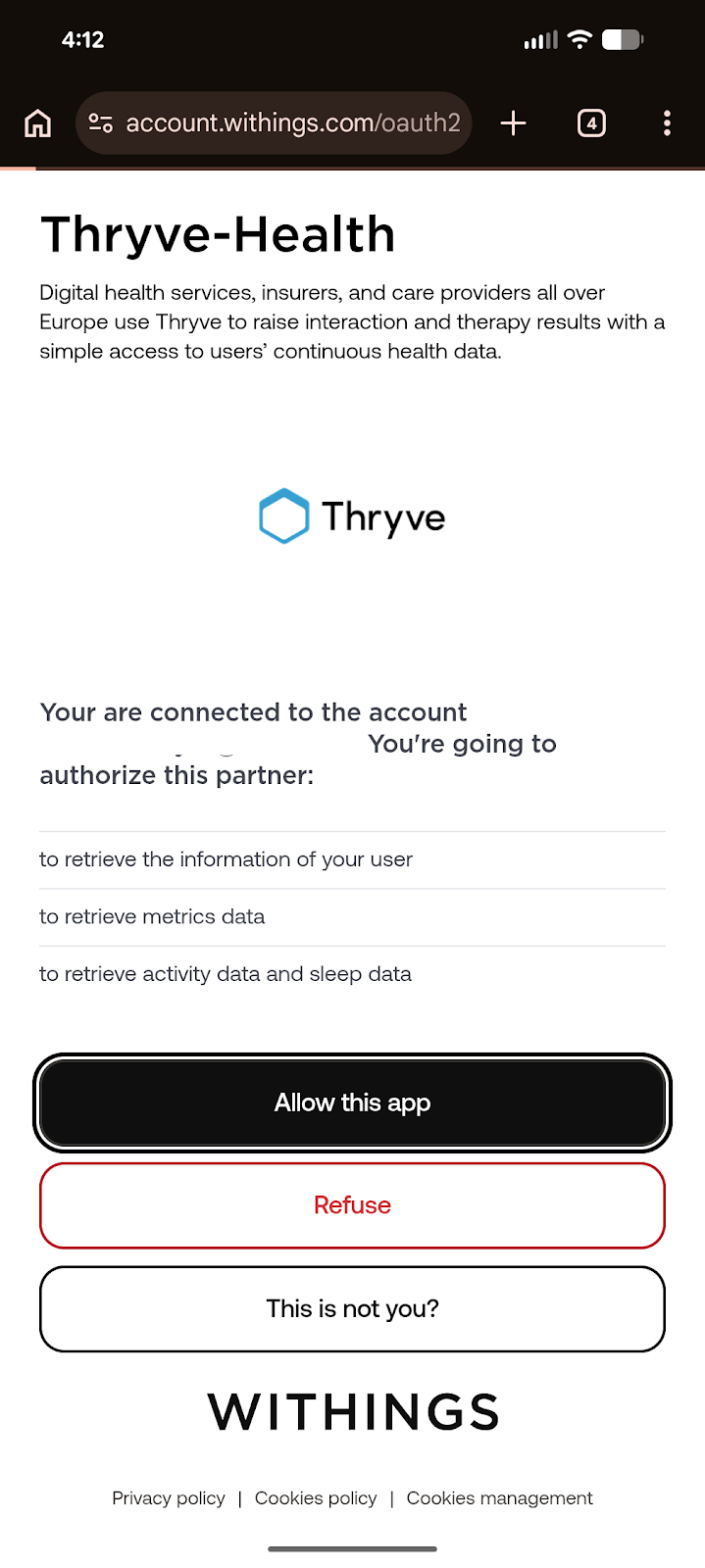
Allow this app
Select Allow this app so Withings can share the needed device data with Thryve.
Phase 2: Sign in to the Withings App
Steps 10-16 • App Login
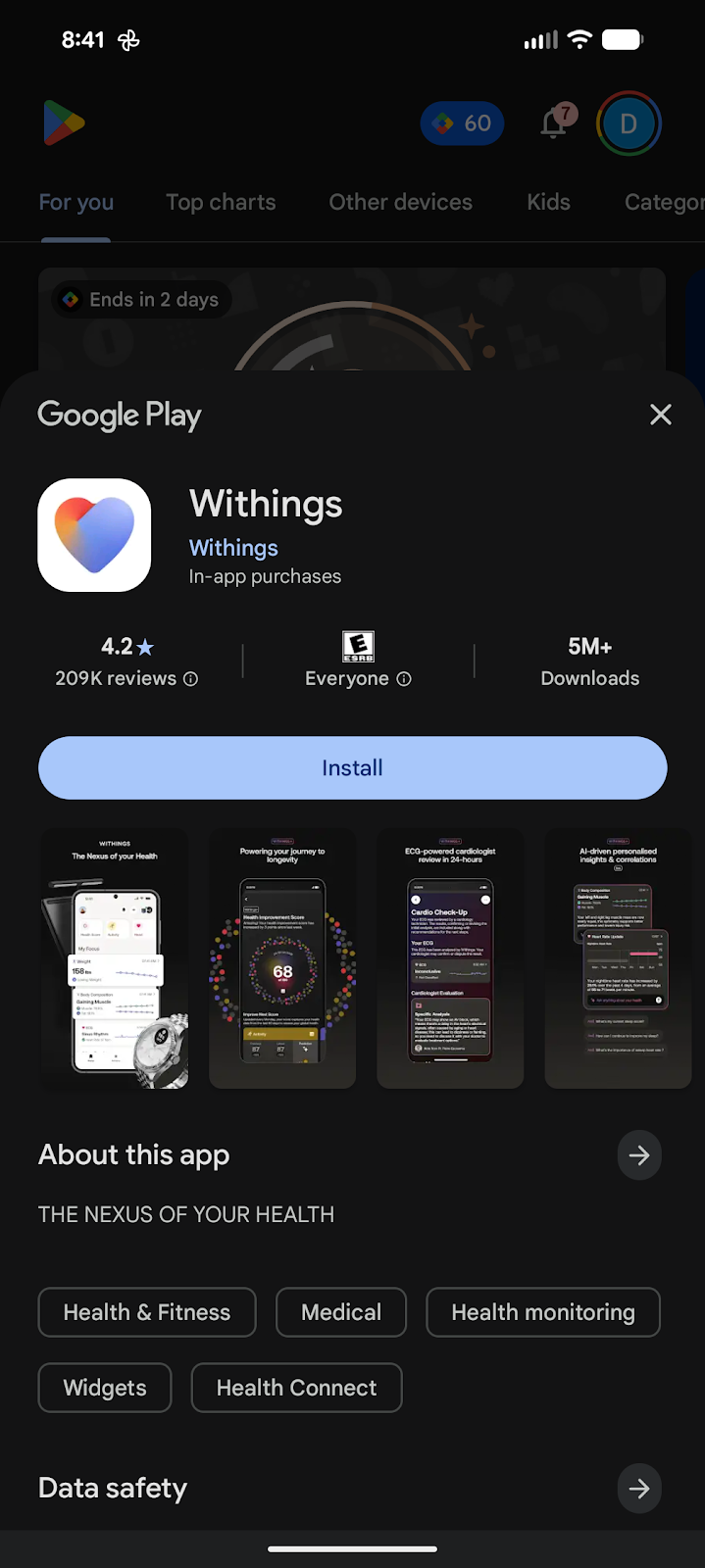
Download the app
Scan the QR code from the device paperwork or go directly to the app store to download the Withings app.
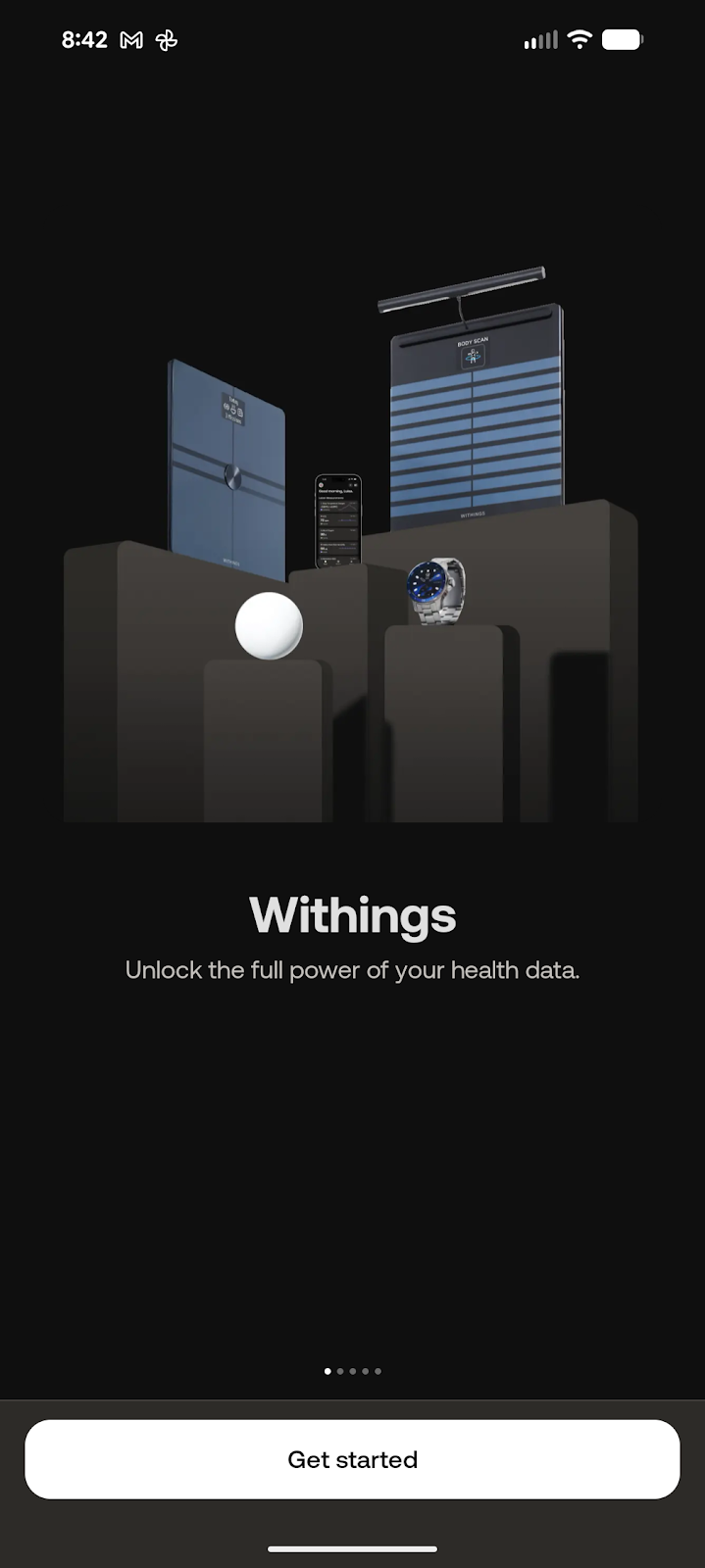
Select Get Started
Open the Withings app and tap Get started.
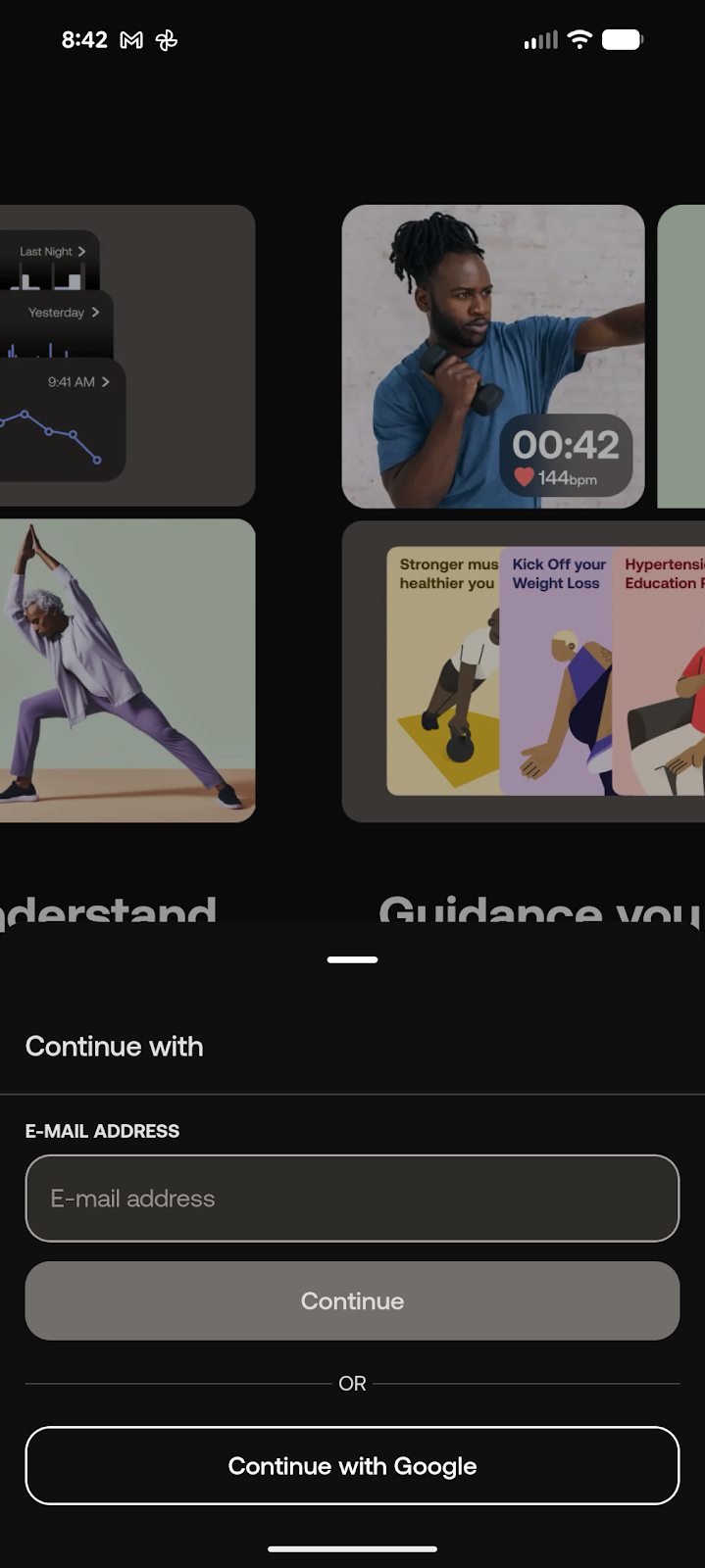
Use the same login method
Enter the exact same email used earlier. If you chose Apple ID during setup, use Apple ID here too.
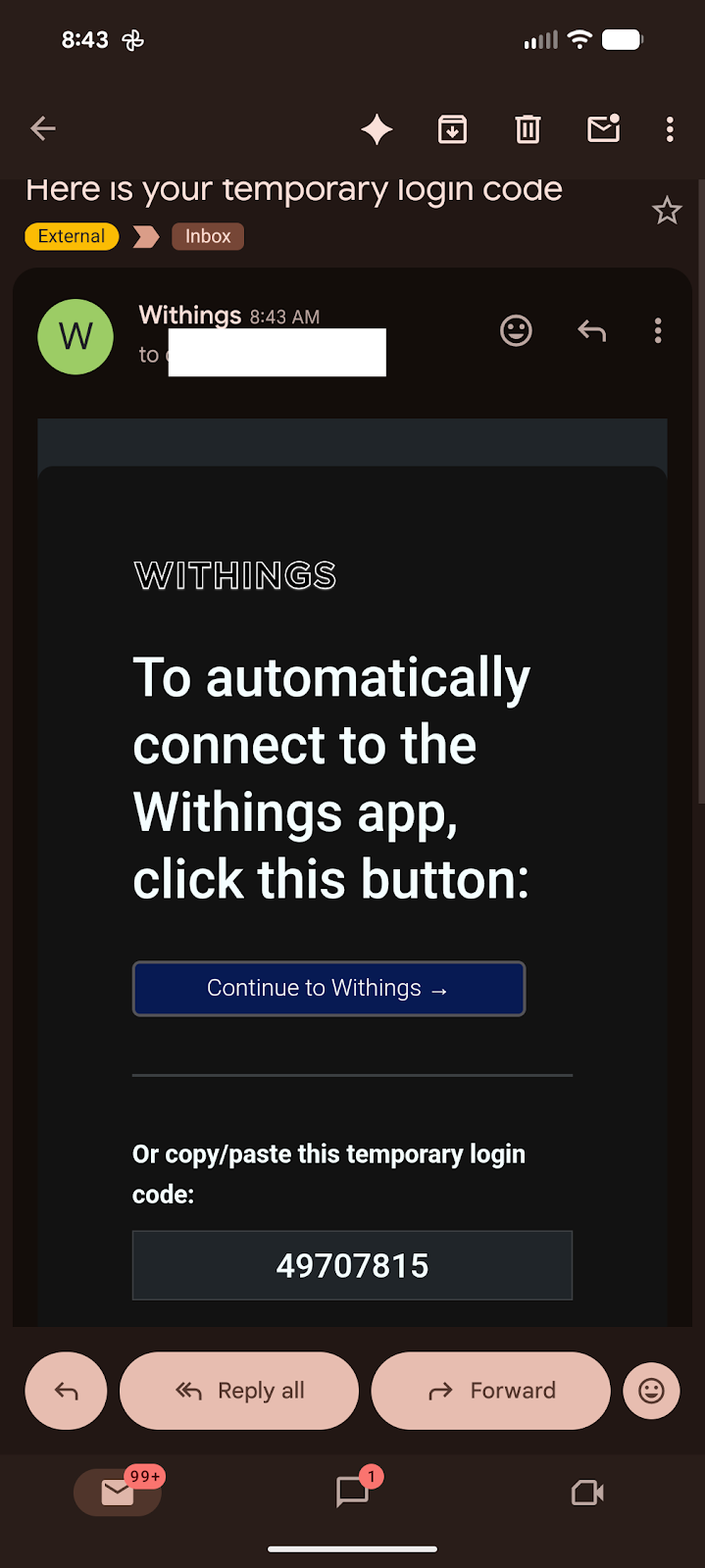
Check your email again
Withings will send another confirmation code to your email.
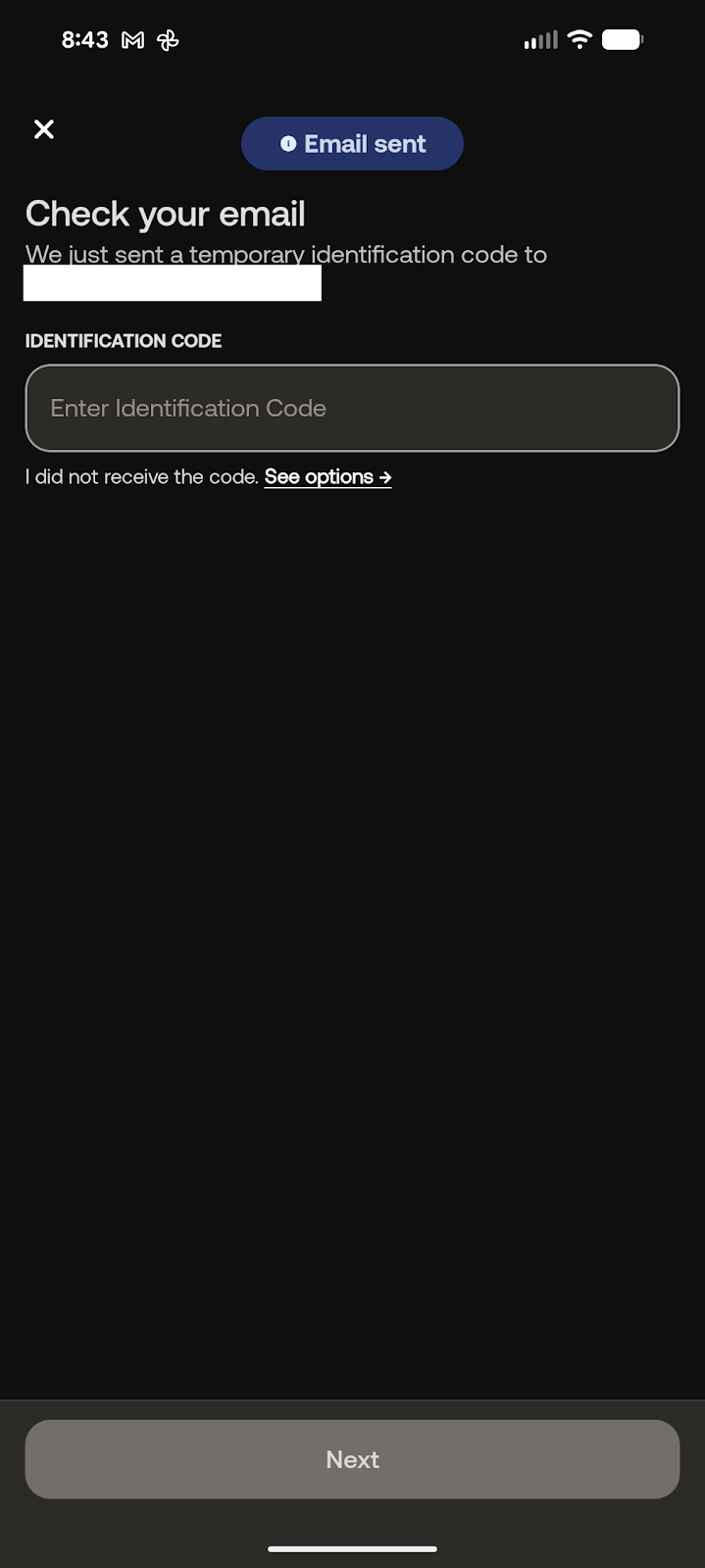
Enter the code in the app
Copy the code from your email and enter it in the Withings app to finish signing in.
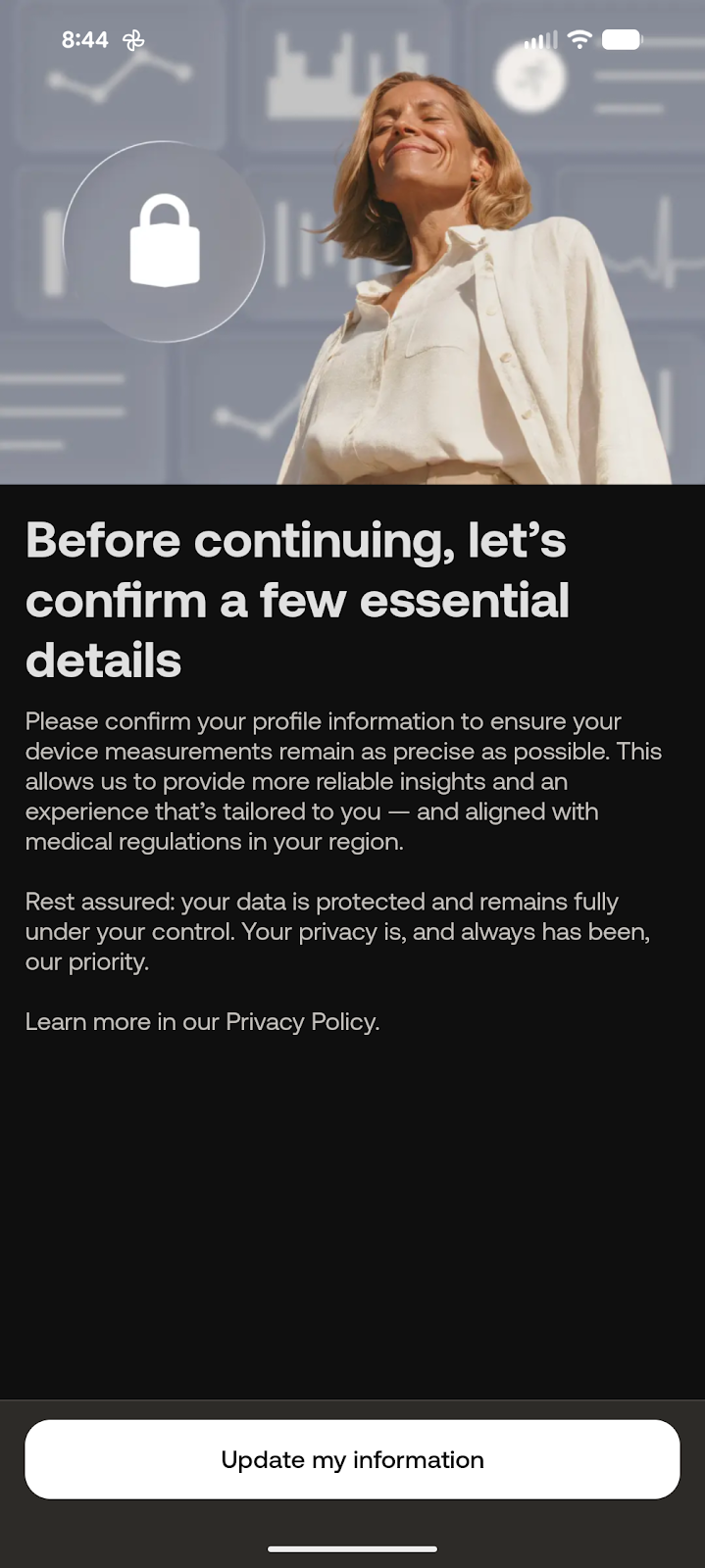
Update my information
When prompted, tap Update my information.
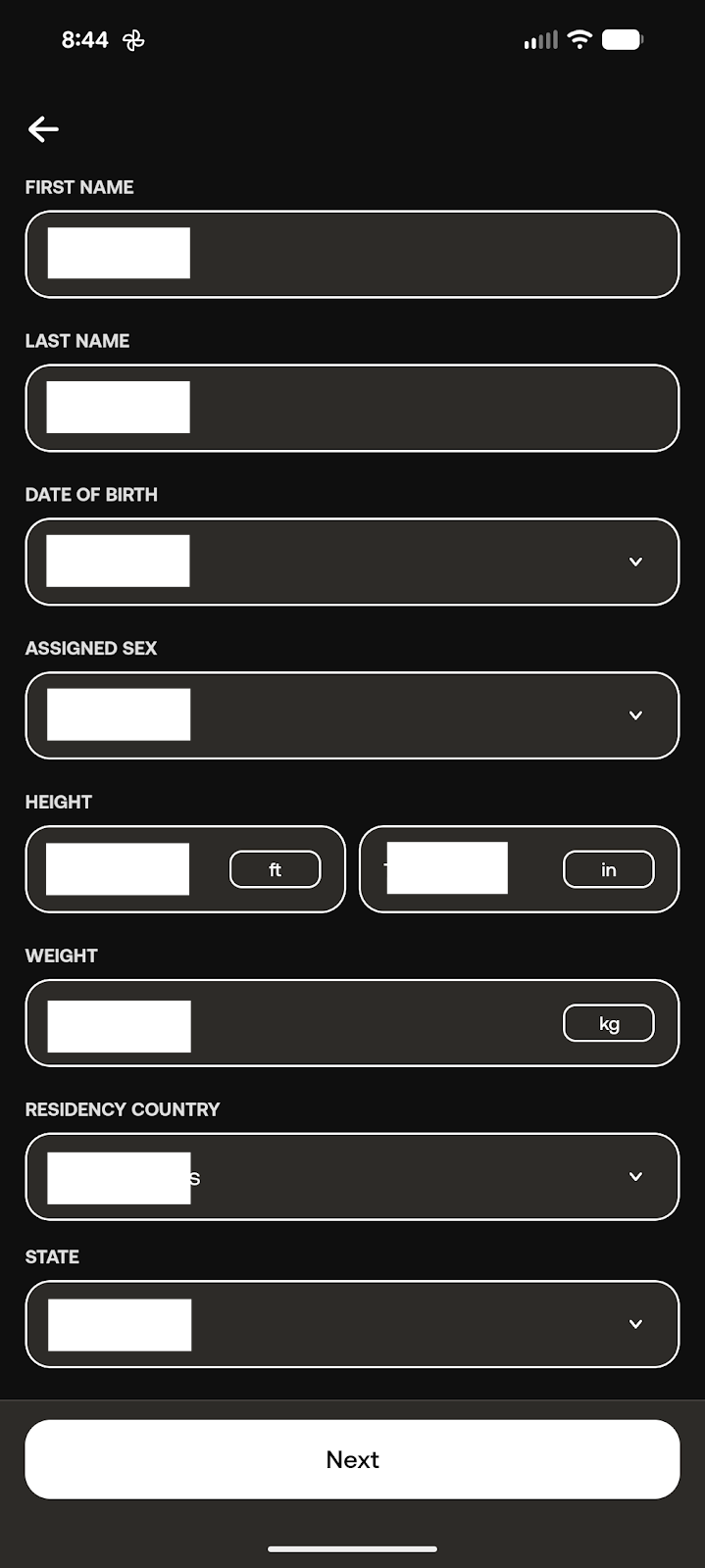
Select your state
Select the state where you live, then tap Next.
Phase 3: Install Your Blood Pressure Monitor
Steps 17-28 • Device Setup
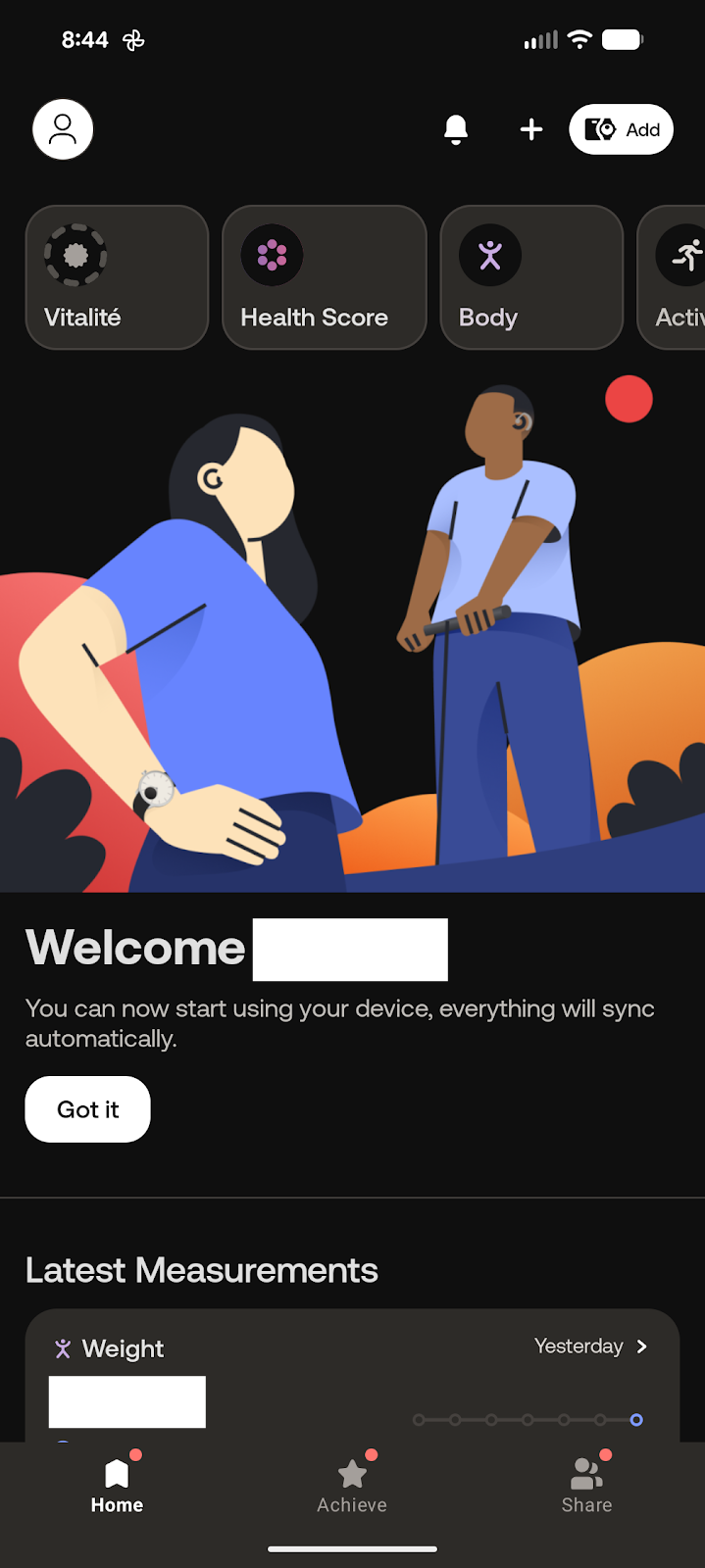
Tap Add
In the top right corner of the app, tap Add.
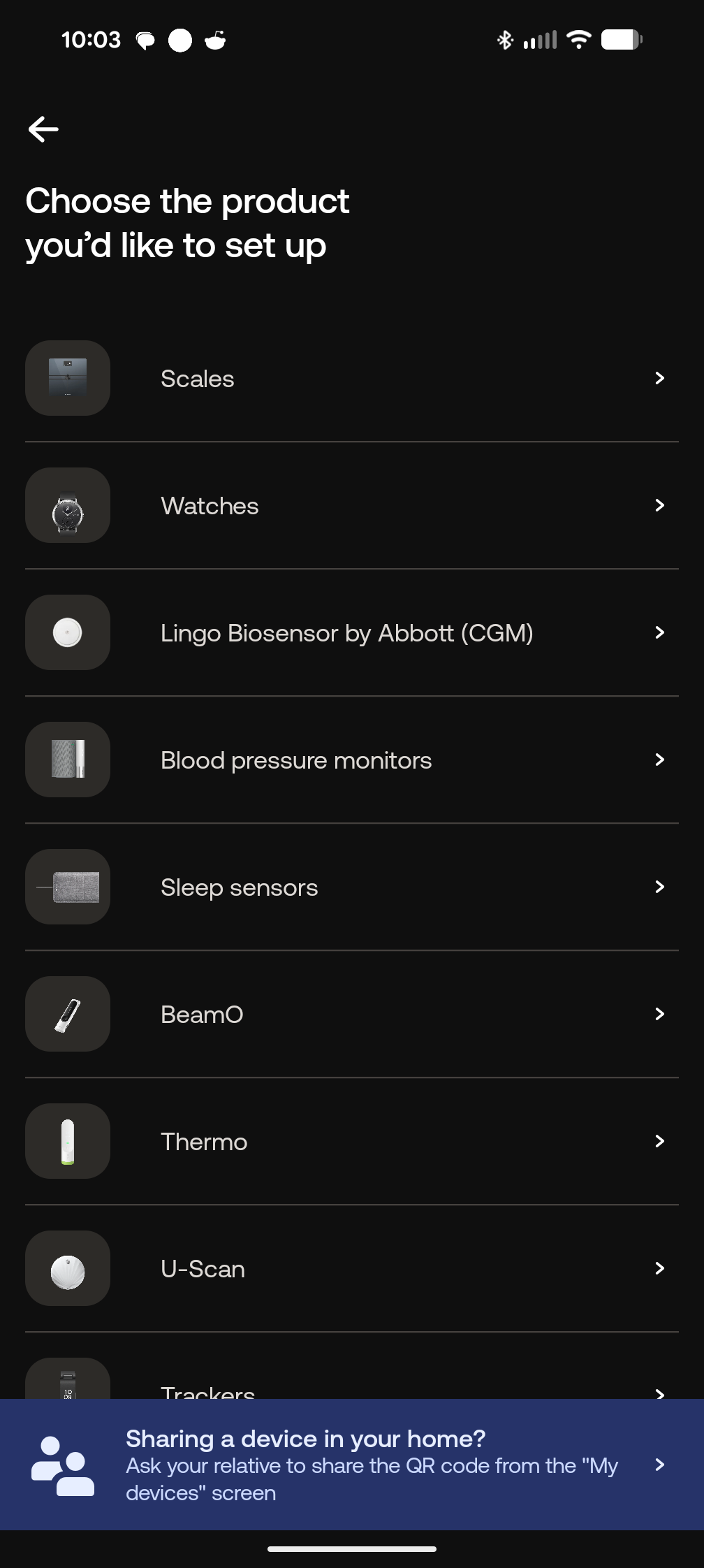
Select Blood Pressure Monitors
Choose Blood Pressure Monitors from the device list.
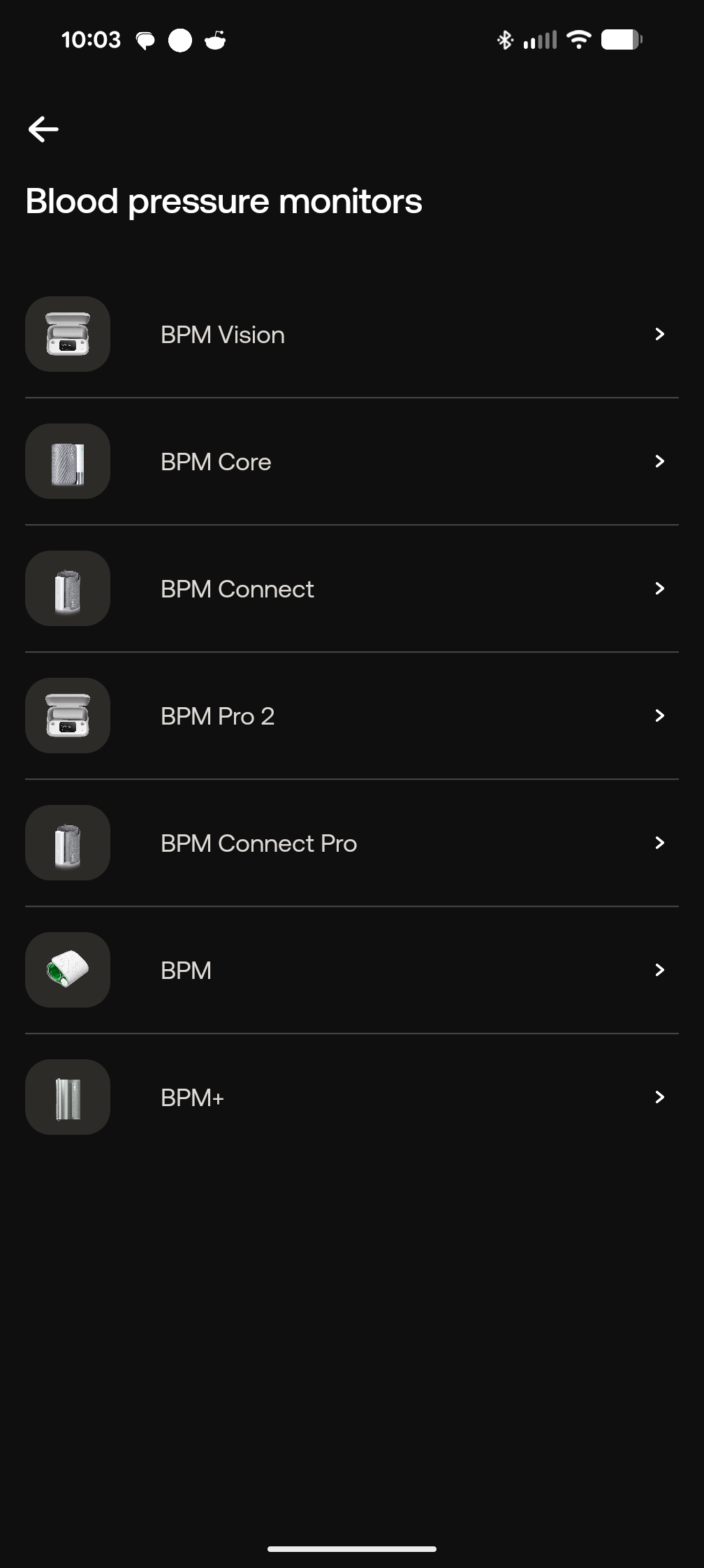
Select BPM Vision
Choose BPM Vision as your device.
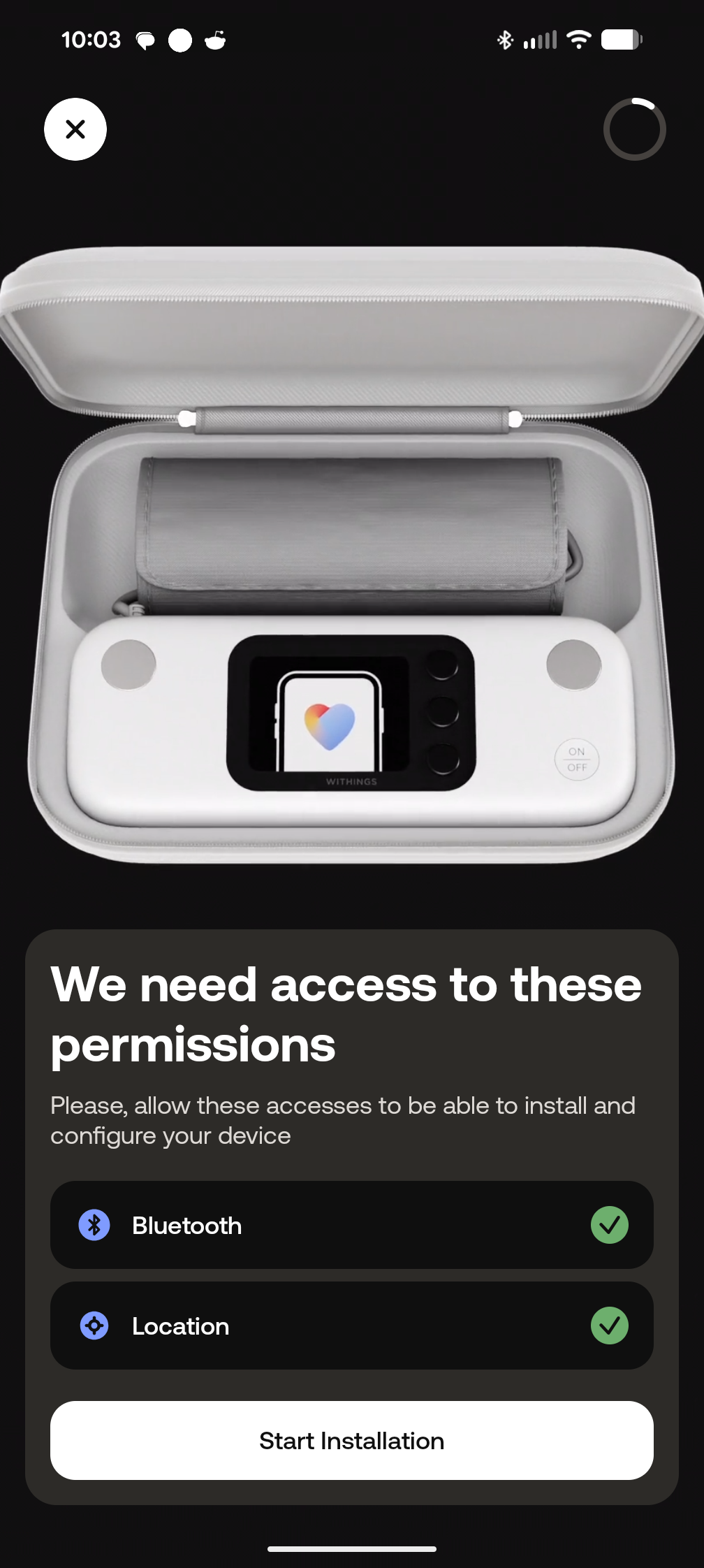
Enable Bluetooth and start installation
Make sure Bluetooth and location services are enabled, then tap Start Installation.
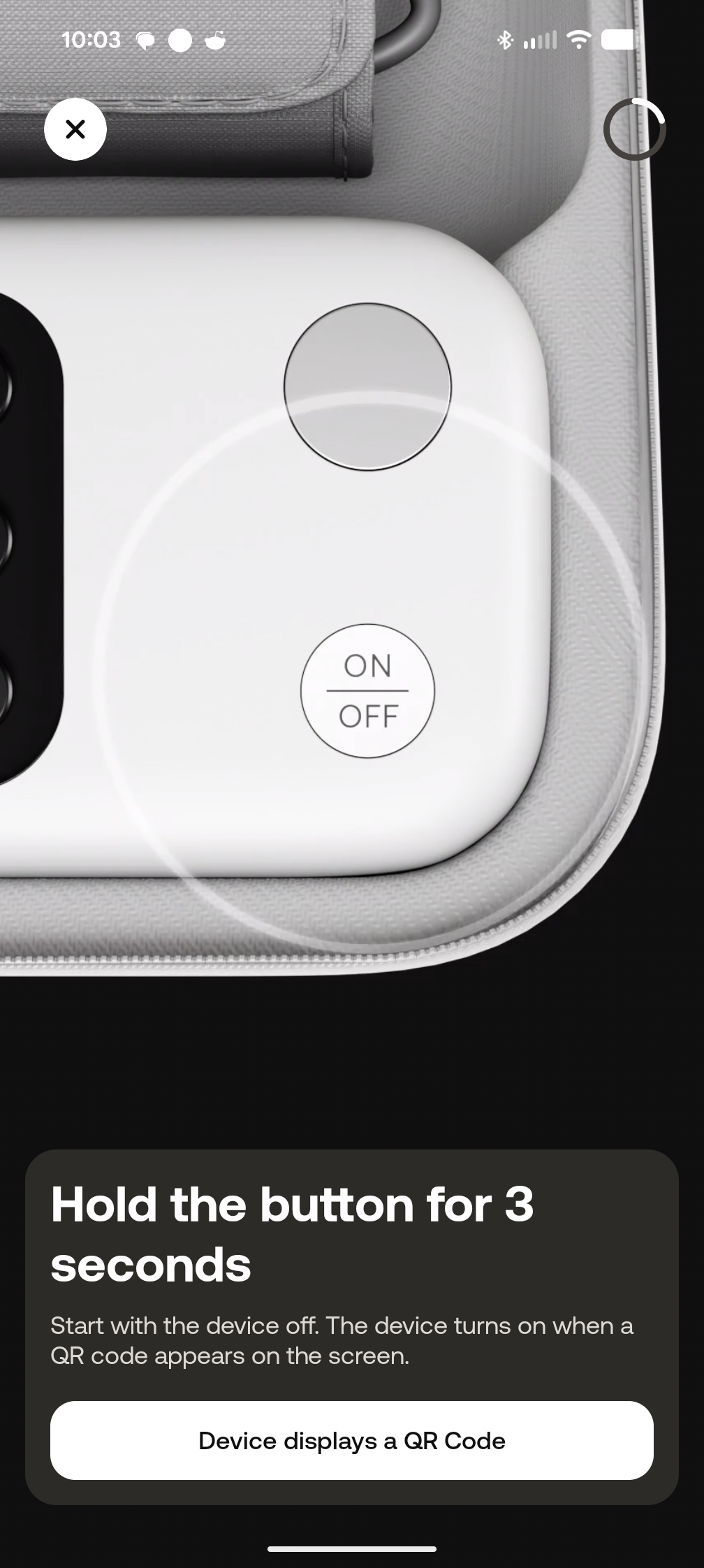
Hold the button for 3 seconds
On the blood pressure monitor, hold the button for 3 seconds to begin pairing.
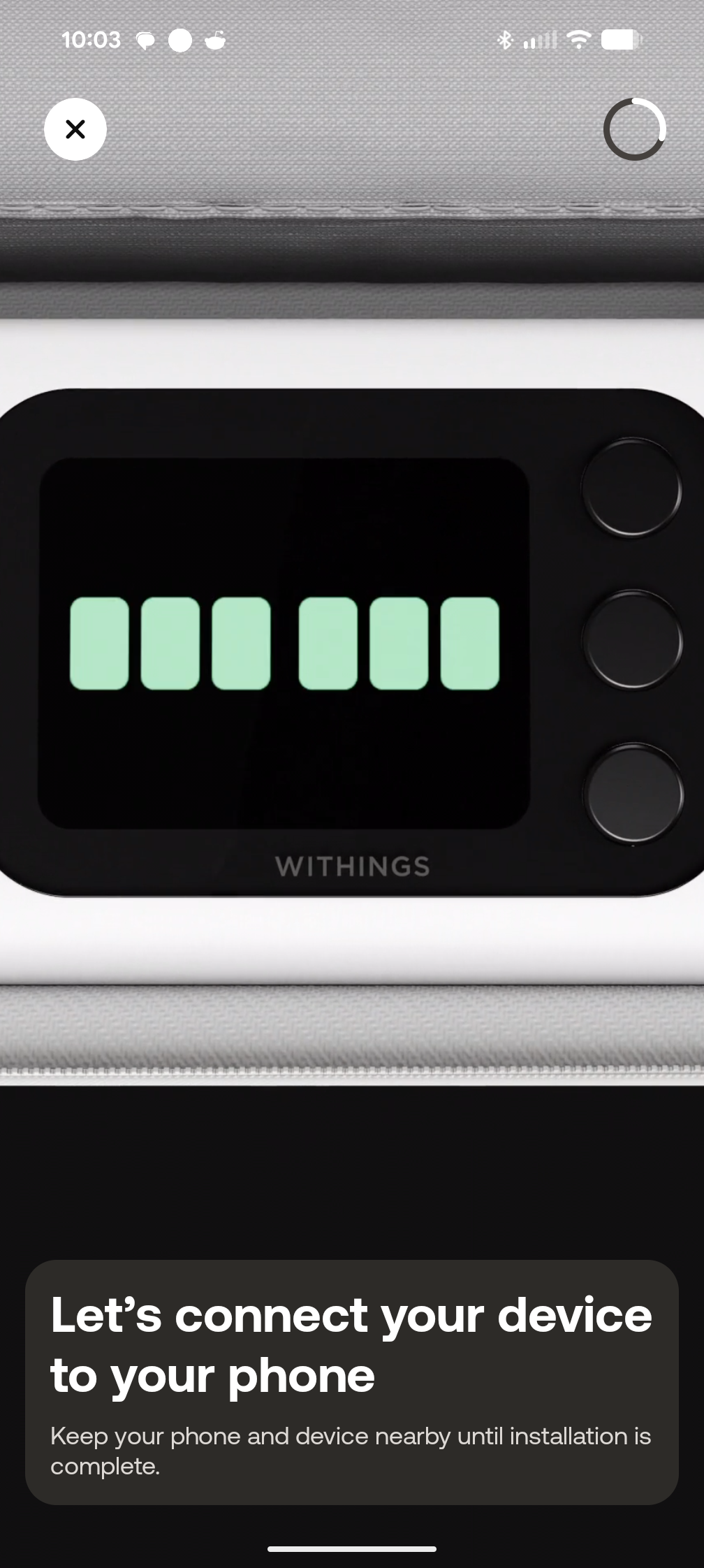
Keep the phone and monitor close
The app will search for the blood pressure monitor. Keep the phone and monitor near each other during pairing.
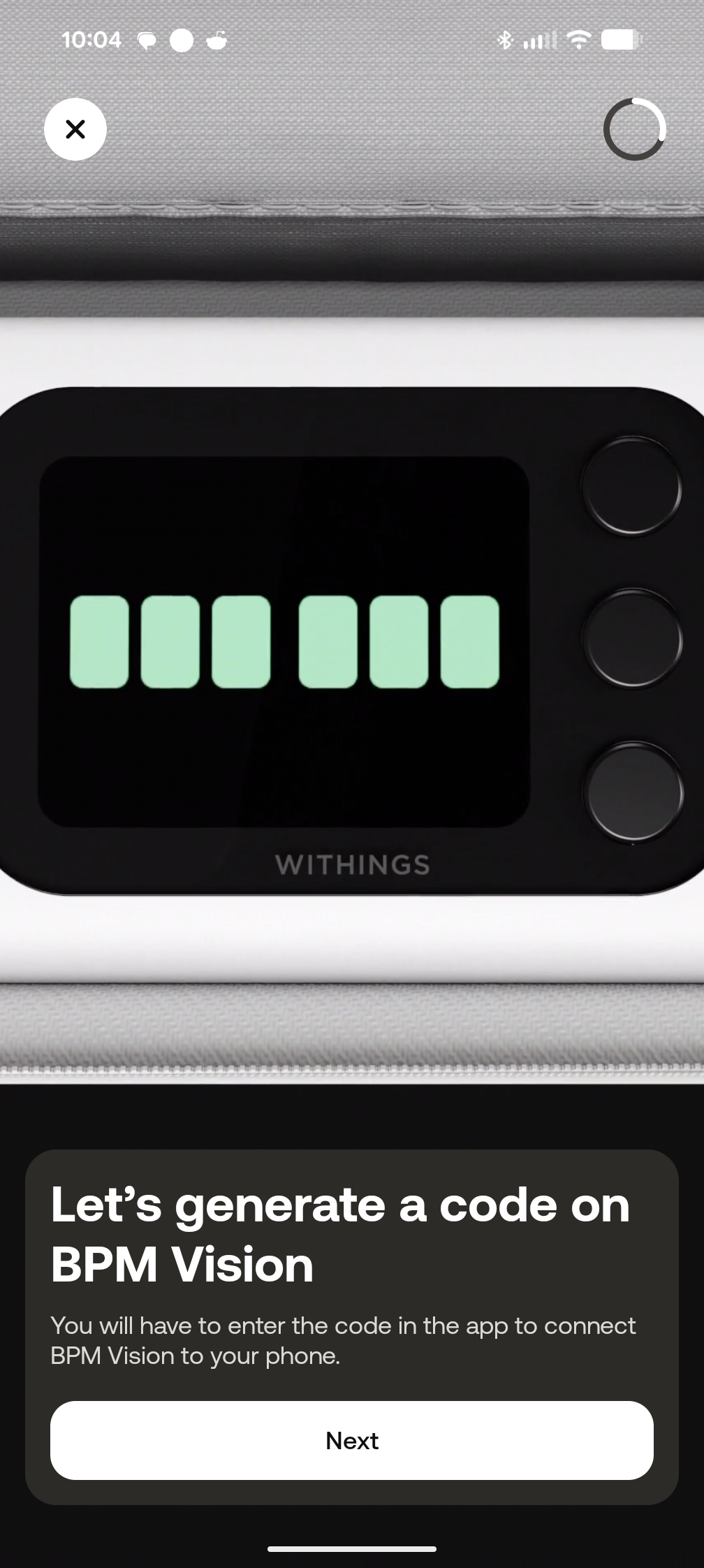
Generate the code
The app will have the blood pressure monitor generate a pairing code.
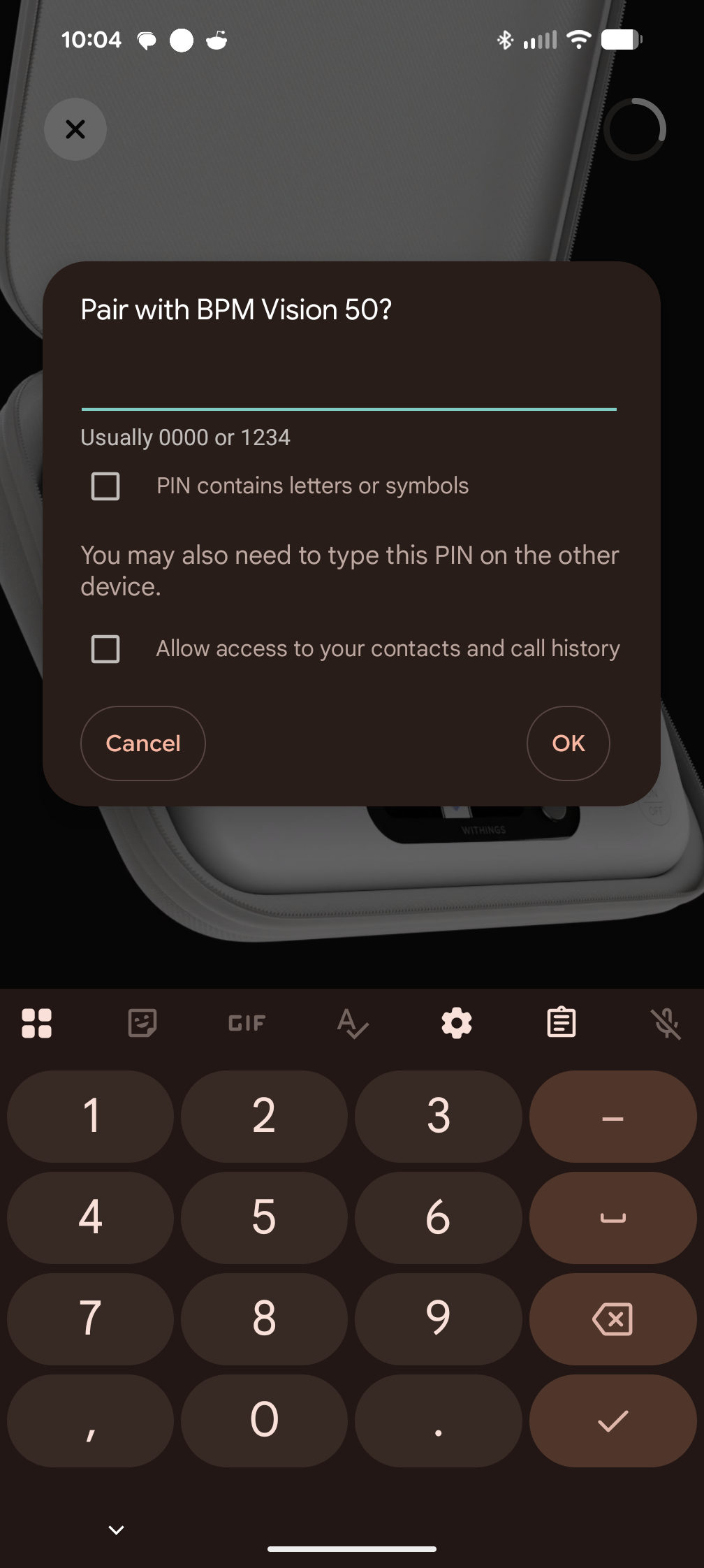
Enter the pairing code
Enter the code shown on the blood pressure monitor to pair the device with your phone.
Pairing complete
Once you see the pairing complete message, continue to Wi-Fi setup.
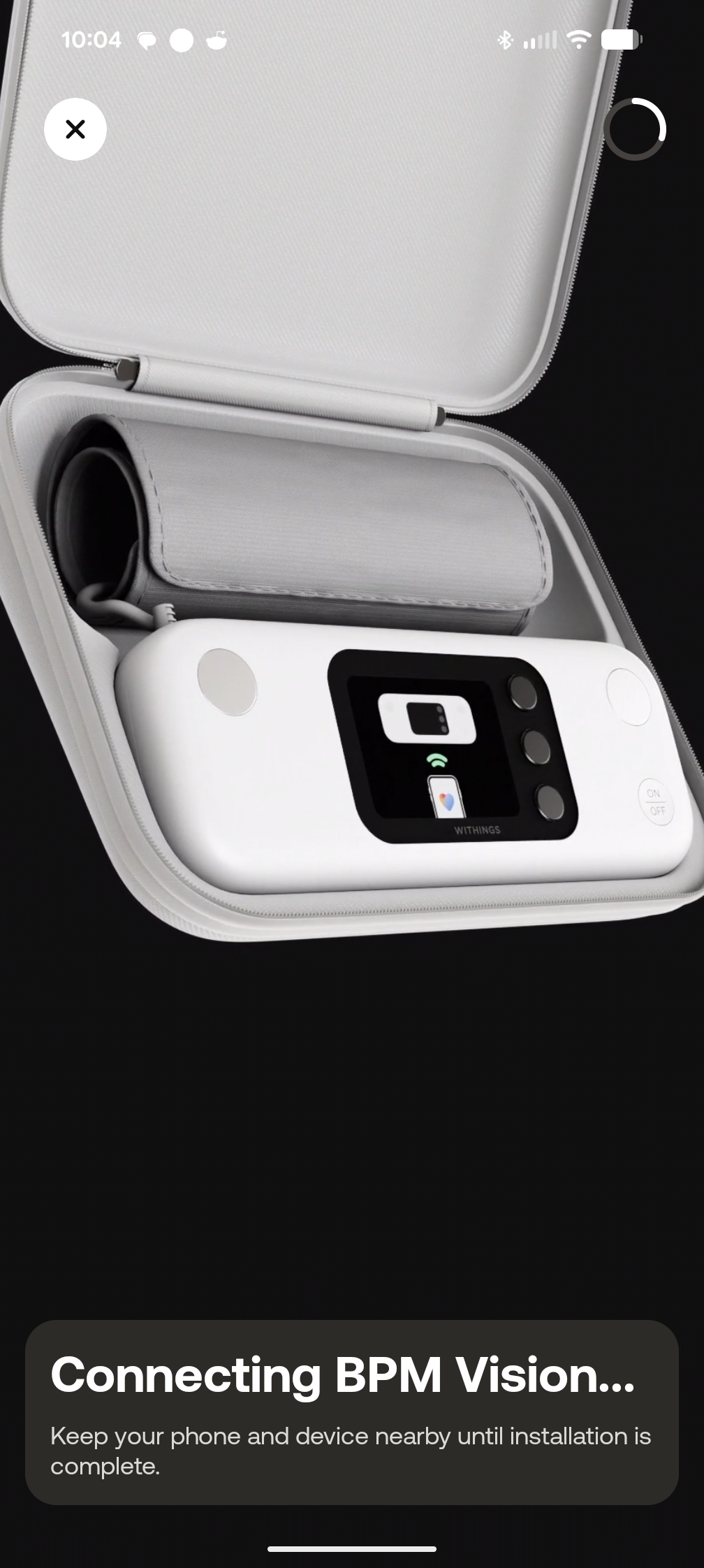
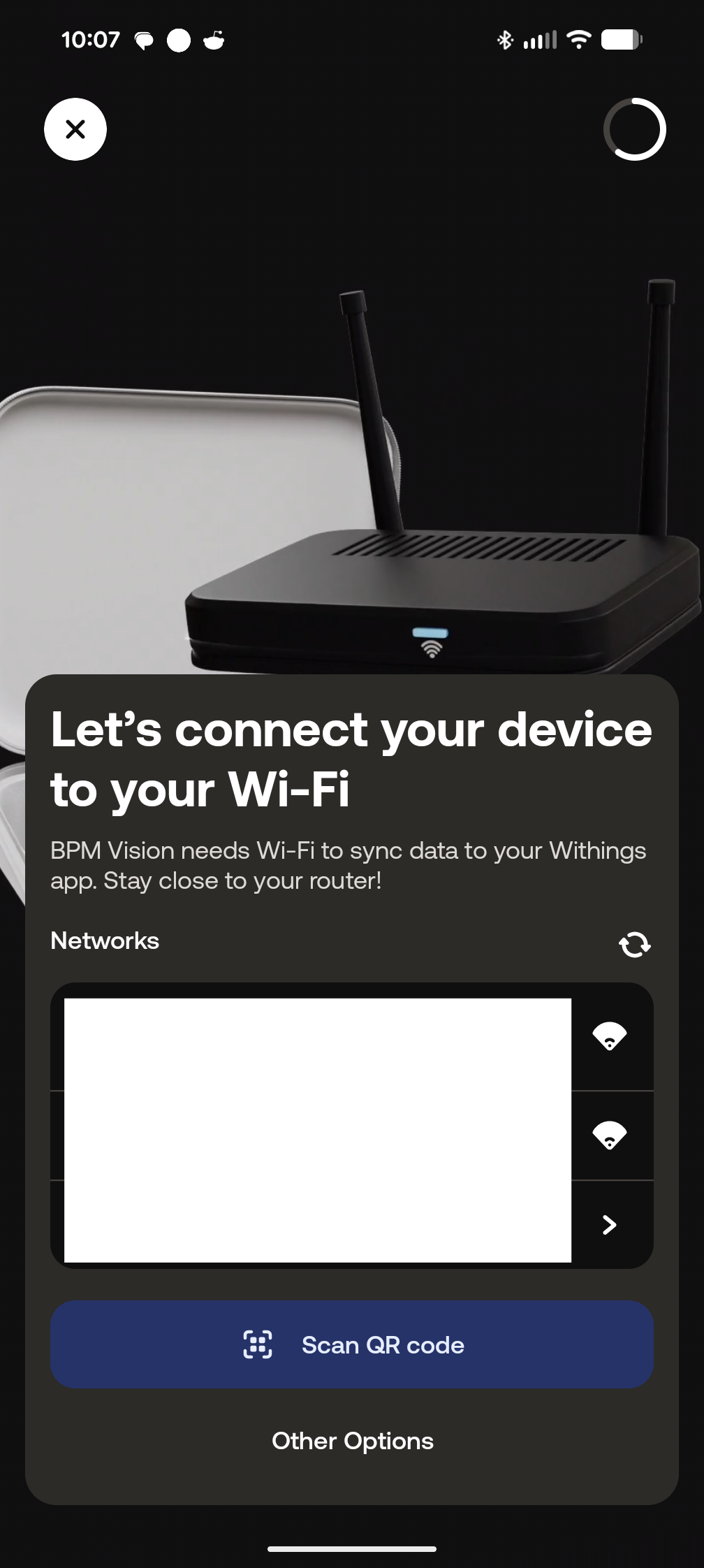
Select your Wi-Fi network
Choose the correct home Wi-Fi network. Enter the password if needed.
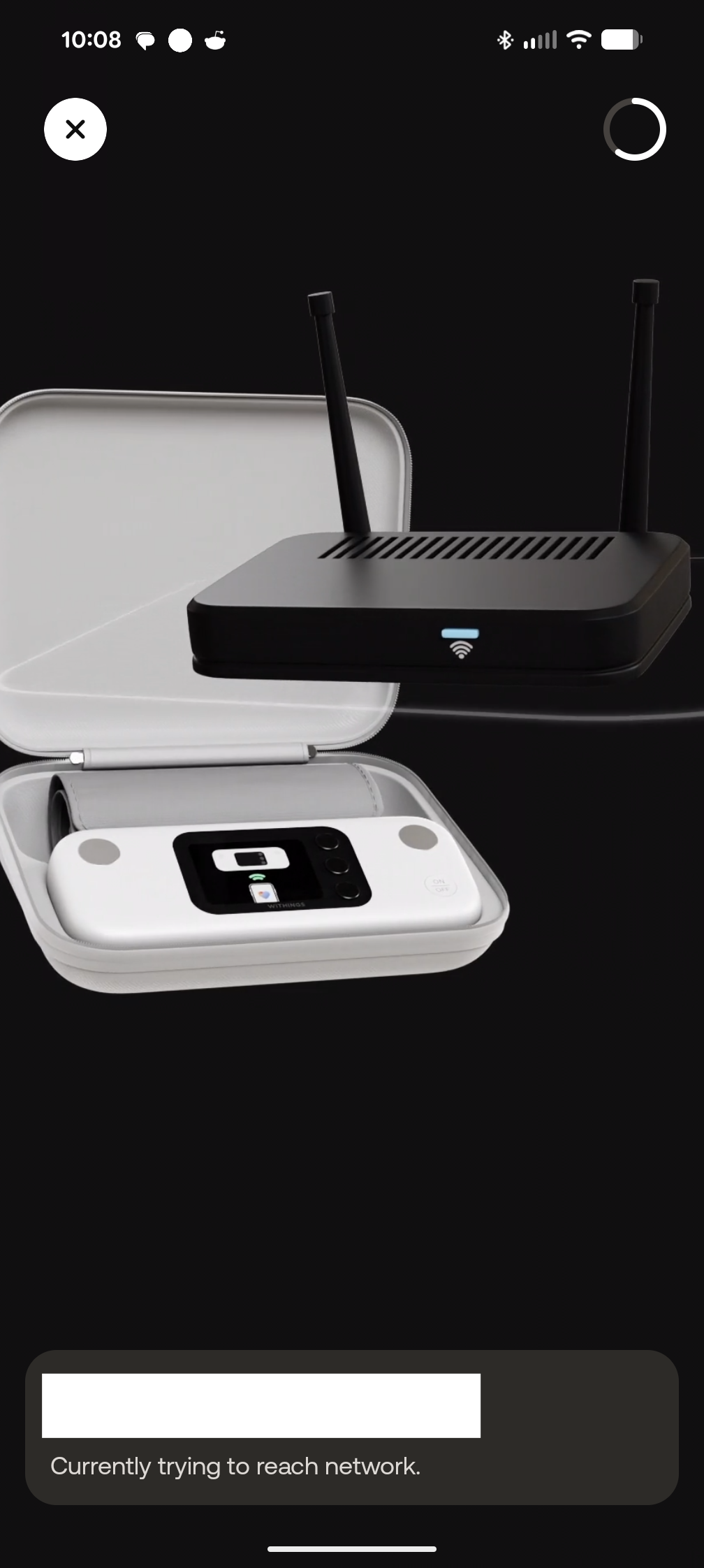
Confirm Wi-Fi connection
The app will confirm the blood pressure monitor has connected to Wi-Fi successfully.
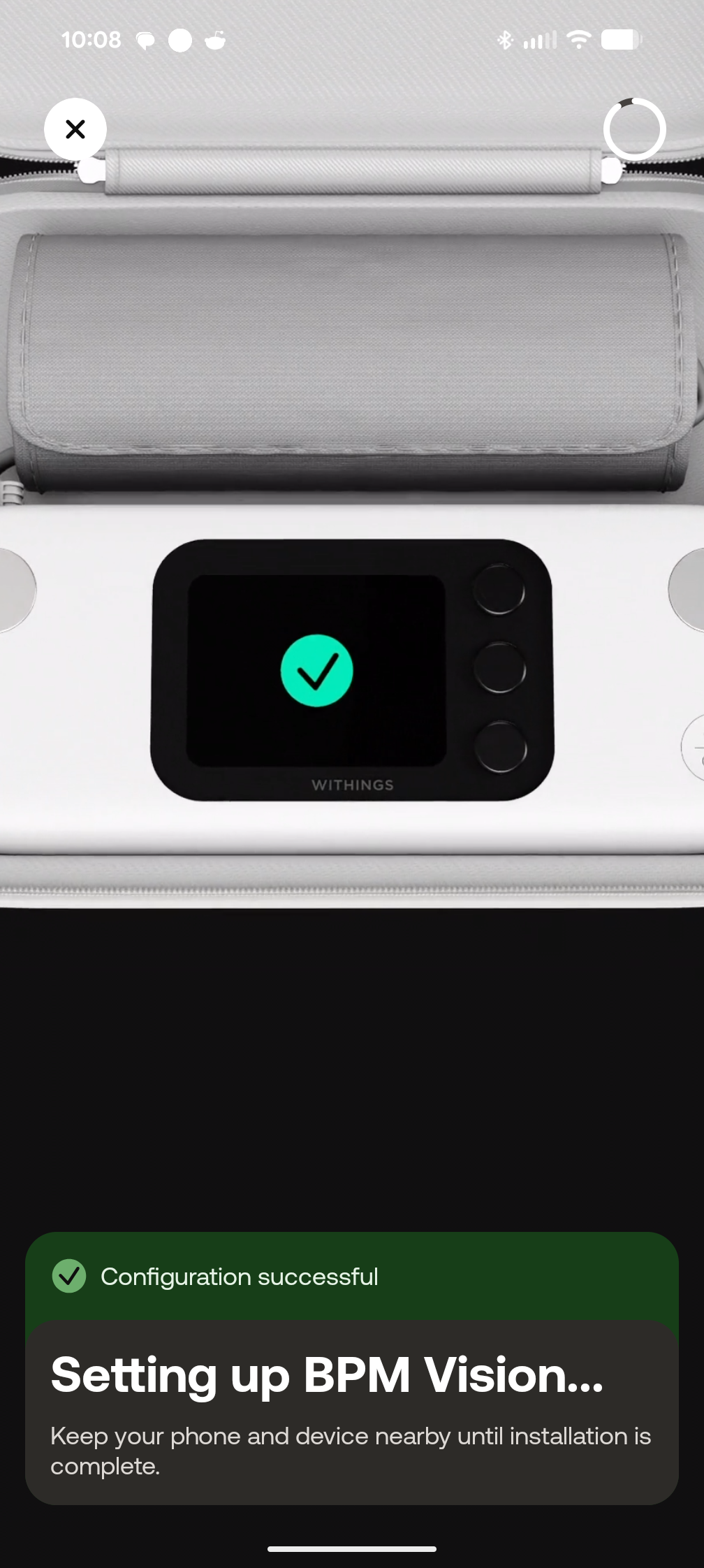
Setup complete
Your blood pressure monitor is now connected. Select Explore features or tap the X in the top left to finish.
Final Step Complete!
Your blood pressure monitor is now set up and synced. If anything on screen looks different during setup, contact your Care Team for support.